– DMA Card Guide: 75T
DMA 卡指南:75T
– Kmbox Guide: B Pro
Kmbox 指南:B Pro (Guide unavailable / 教程暂未提供) | Net
Net
– Arduino MAKCU Guide
Arduino MAKCU 指南
– DMA Cheat Guide
DMA 辅助指南 (Guide unavailable / 教程暂未提供)
– Xim Matrix Guide
Xim Matrix 指南 (Guide unavailable / 教程暂未提供)
DMA Card 100T Firmware Guide
DMA 卡 100T 固件指南
This guide applies to our branded 100T DMA cards and most compatible third-party 100T models.
本指南适用于我们的 100T DMA 卡,也适用于大多数兼容的第三方 100T 型号。
Before flashing anything, make sure you have received your firmware .bin file.
刷写前,请确认你已经收到固件 .bin 文件。
Some DMA cards are shipped with firmware already installed, so flashing again may not be necessary. If you’re unsure, confirm with your seller first.
You can purchase firmware here:
你可以在这里购买固件:
https://vipercheats.com/firmware/

Recommended Hardware
推荐硬件
Recommended USB cable — Use a high-speed USB 3.x cable
Not enough room for the DMA card? Use a PCIe extender
DMA 卡安装空间不够?请使用 PCIe 延长线
No second PC? We recommend a
没有第二台电脑?我们推荐使用 Mini PC or laptop
Recommended OS — Windows 10 or Windows 11
Flashing Firmware
刷写固件
- Download and keep the DMA Cheats folder on your Second PC.
下载并将 DMA Cheats 文件夹保存在第二台电脑上。 - Only copy files to the Main PC when the instructions tell you to.
只有教程要求时,才将文件复制到主电脑。 - Never download or run cheat software on the Main PC.
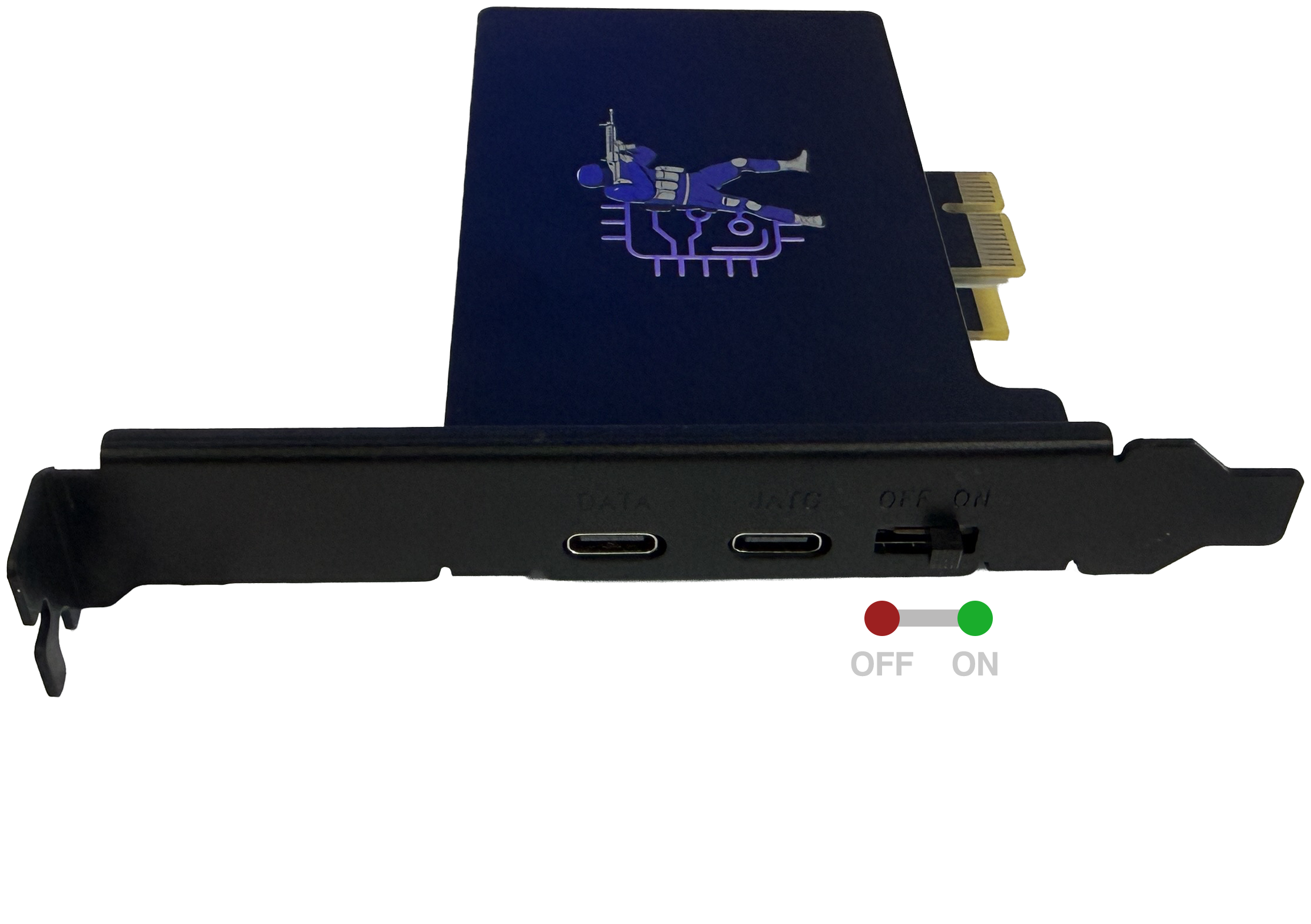
1) Make sure the physical switch on the DMA card is set to
确认 DMA 卡上的物理开关已设置为 ON.
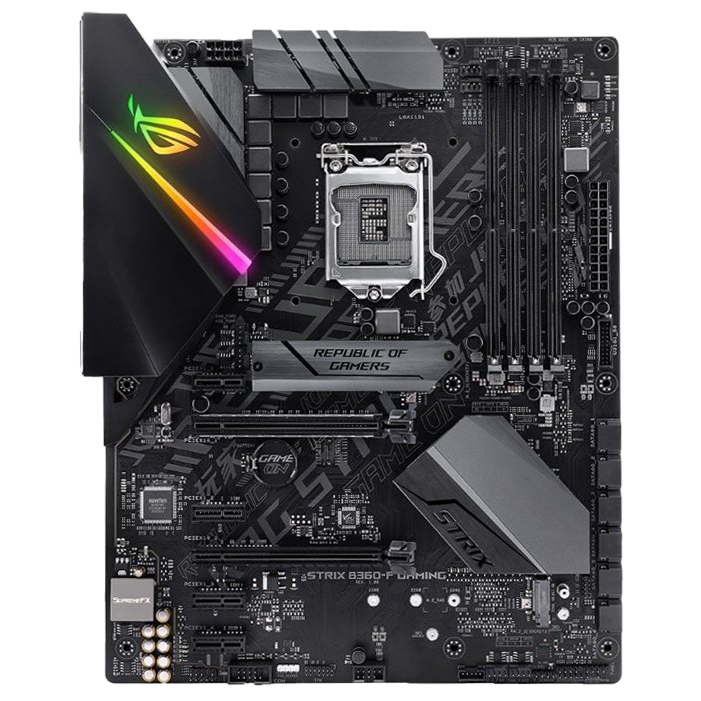
2) Power off the Main PC and insert the DMA card into any PCIe slot (x1 / x4 / x16).
关闭主电脑电源,将 DMA 卡插入任意 PCIe 插槽(x1 / x4 / x16)。
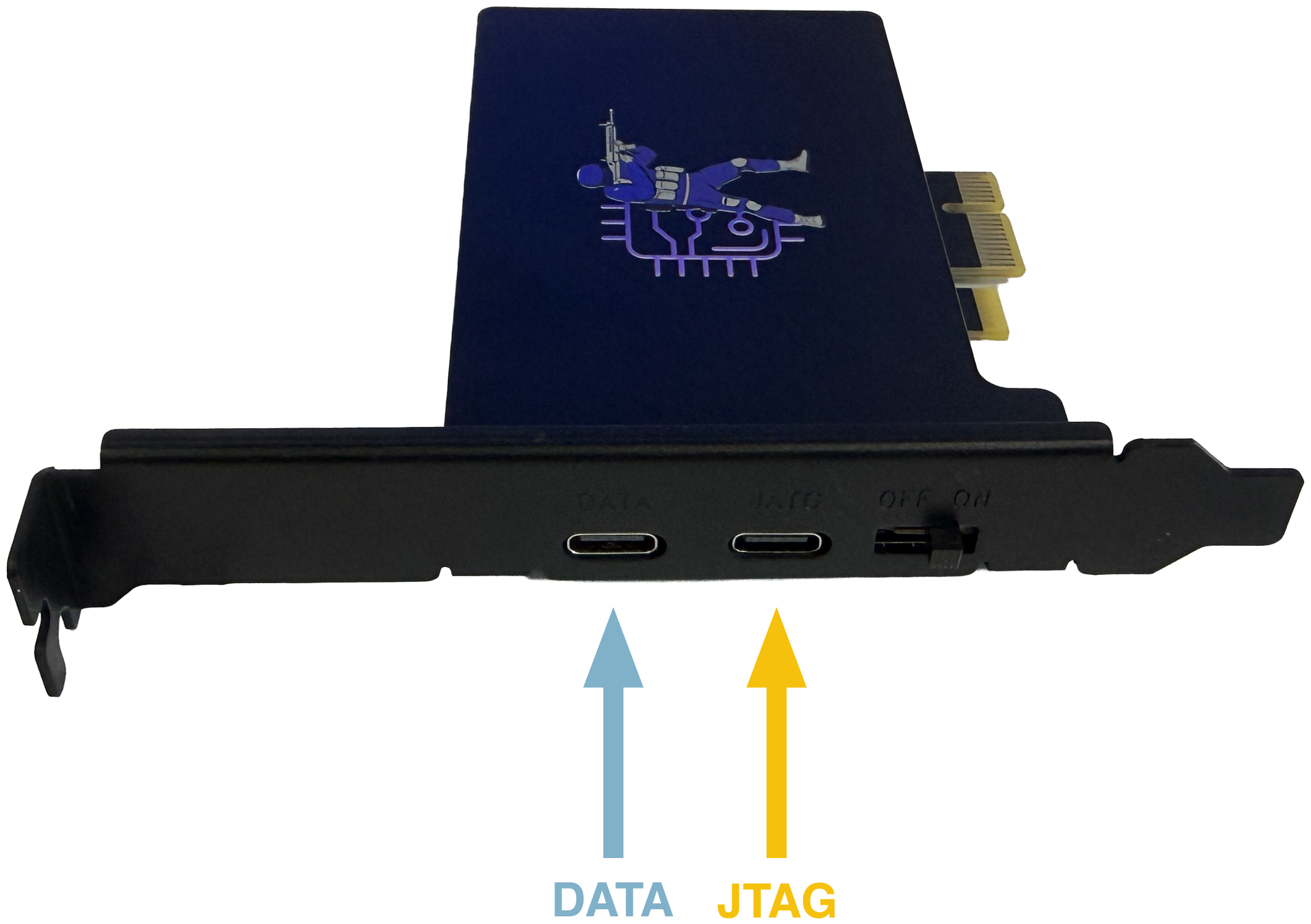
3) Connect the USB 3 cable to the
将 USB 3 数据线连接到 JTAG port on the DMA card.
端口。
4) Plug the other end into a USB 3.x port on the Second PC.
将另一端插入第二台电脑的 USB 3.x 端口。
5) Turn on both PCs.
打开两台电脑。
6) On the Second PC open:
DMA Cheats\2. Firmware\100T\1. CH341PAR driver\CH341PAR
Run SETUP.exe
运行 SETUP.exe。

7) Click Install.
点击 Install。

8) When you see “Driver install success!”, continue.

9) On the Second PC go to folder DMA Cheats\2. Firmware\100T\2. Flashing tools and move CH347FPGATool folder to your desktop.
This is a mandatory step to move the folder to your dekstop, don’t ignore it!
这是必须步骤,请把文件夹移动到桌面,不要跳过。

10) Move you firmware file (.bin) to the folder CH347FPGATool.
将你的固件文件(.bin)移动到 CH347FPGATool 文件夹。
You will receive the firmware (.bin) file after purchasing it.
购买后你会收到固件(.bin)文件。

11) Open CH347FPGATool folder and run CH347FpgaDownloadTool.exe
打开 CH347FPGATool 文件夹并运行 CH347FpgaDownloadTool.exe。
12) In the FPGA column, select xc7a100t.
在 FPGA 列中选择 xc7a100t。

13) In the middle column, change from BIT to BIN.
在中间列中将 BIT 改为 BIN。

14) Then click this button and select your firmware (.bin) file
然后点击此按钮并选择你的固件(.bin)文件。

15) Click this button to start flashing process.
点击此按钮开始刷写。

16) Wait until the flashing process is complete. It may take 2-4 minutes.
等待刷写完成,可能需要 2-4 分钟。

17) After the process is completed, restart your Main PC.
完成后重启主电脑。
18) Connect USB cable to the
将 USB 线连接到 DATA
DATA port on the DMA card and turn on your Main and Second PCs.
端口,然后打开主电脑和第二台电脑。

19) Some firmware requires to install driver on Main PC. If you bought firmware from our website, the Manager will send you the driver (if it’s required). For some firmware driver is not required or it will be installed automatically.
有些固件需要在主电脑安装驱动。如果你从我们网站购买固件,经理会在需要时发送驱动。有些固件不需要驱动,或会自动安装。
20) On your Second PC go to folder DMA Cheats\2. Firmware\100T\3. DMA test. And run lone-dma-test.exe. Select 1. Full Test.
在第二台电脑进入 DMA Cheats\2. Firmware\100T\3. DMA test,运行 lone-dma-test.exe,并选择 1. Full Test。

< 60 MB/s — bad speed, you need to get a better USB Cable or try another USB 3 Port or another PCIe slot
>= 100 MB/s — good speed
>= 150 MB/s — great speed
If the test was failed, watch the video and read the troubleshooting below
如果测试失败,请观看视频并阅读下面的故障排查。
Video Manual
视频教程
Firmware Installer Error
固件安装器错误
Make sure that you:
请确认你已经:
- Connected USB cable to JTAG (CFG) port of DMA card and to second PC USB 3.0 port
将 USB 线连接到 DMA 卡的 JTAG(CFG)端口,并连接到第二台电脑的 USB 3.0 端口。 - Launching JTAG Firmware Installer on Second PC
在第二台电脑上启动 JTAG 固件安装器。 - Moved JTAG Firmware Installer to desktop
将 JTAG 固件安装器移动到桌面。 - Moved firmware file (.bin) to desktop
将固件文件(.bin)移动到桌面。 - If you are using a third-party DMA card, try using another Tool from the folder “If this manual doesn’t work for your card”.
如果你使用第三方 DMA 卡,请尝试使用“If this manual doesn’t work for your card”文件夹中的其他工具。
Bad Test / Slow Speeds
测试异常 / 速度慢
If speed test was failed:
如果速度测试失败:
- Turn off Gaming-PC and unplug the power cord.
关闭游戏电脑并拔掉电源线。 - Unplug the DMA-USB from Radar-PC.
从雷达电脑拔下 DMA-USB。 - Press and hold the Gaming-PC power button for 15 seconds to unload any residual voltage.
按住游戏电脑电源键 15 秒,以释放残余电压。 - Plug DMA – USB back into Radar – PC and reconnect the Gaming – PC power cord.
将 DMA-USB 重新插回雷达电脑,并重新连接游戏电脑电源线。 - Power up the Gaming – PC.
启动游戏电脑。 - Run Benchmark Tool and see if issues persist.
运行 Benchmark Tool,查看问题是否仍然存在。
If speed test is slow:
如果速度测试较慢:
- ~35-60 MB/s -> Make sure that you are on a USB 3.x cable and port
- We recommend getting at least a 10gbit/s USB cable
建议使用至少 10Gbit/s 的 USB 数据线。 - Try different USB Ports on the second PC.
尝试第二台电脑上的不同 USB 端口。 - Usually USB 3.x ports are colored blue/red/orange/purple
通常 USB 3.x 端口会是蓝色、红色、橙色或紫色。 - USB 3.x ports usually have these icons next to them
USB 3.x 端口旁通常会有这些图标。 - ~16-35 MB/s -> Most likely stuck in tiny algo
- Try different PCIe ports and make sure that the BIOS settings are correct
尝试不同 PCIe 端口,并确认 BIOS 设置正确。 - If nothing else works try setting the pcie slot to gen3 / gen4 in bios.
如果仍无效,请尝试在 BIOS 中将 PCIe 插槽设置为 Gen3 / Gen4。
Driver Installation Error
驱动安装错误
If certain peripherals not responding or behaving unusual or display is unresponsive/showing artefacts or behaving unusual:
如果某些外设无响应、行为异常,或显示器无响应/出现画面异常:
- Try different PCIe slots
尝试不同的 PCIe 插槽。
DMA Failed to Connect
DMA 连接失败
- Check your USB cable
检查你的 USB 数据线。 - Open device manager on second PC
在第二台电脑上打开设备管理器。 - Search for FTDI Driver on USB category
在 USB 分类中查找 FTDI 驱动。

- Open folder DMA Cheats\2. Firmware\4. Driver for DMA Card
打开 DMA Cheats\2. Firmware\4. Driver for DMA Card 文件夹。 - Find the driver you need
找到你需要的驱动。 - Right Click FTDI SuperSpeed-FIFO Bridge in device manager
在设备管理器中右键点击 FTDI SuperSpeed-FIFO Bridge。 - Update Drivers with the extracted FTD3XX Drivers.
使用解压后的 FTD3XX 驱动更新驱动。 - Make sure Second PC is fully updated and there are no windows updates pending
确认第二台电脑已完全更新,并且没有待处理的 Windows 更新。 - Check to make sure you are using a fast USB slot (cycle slots if necessary)
确认你使用的是高速 USB 插槽,必要时轮换插槽测试。
Where to download?
在哪里下载?
You can download DMA Cheats folder here
你可以在这里下载 DMA Cheats 文件夹 — https://vipercheats.com/download/
Firmware file (.bin) is unique and is developed for each customer individually, you can buy it here
固件文件(.bin)是唯一的,并会为每位客户单独开发,你可以在这里购买 —
https://vipercheats.com/download/
