– DMA Card Guide: 75T
DMA 卡指南:75T | 100T
– Firmware Guide: 75T
固件指南:75T | 100T
– Kmbox Guide: B Pro
Kmbox 指南:B Pro (Guide unavailable / 教程暂未提供) | Net
– Arduino MAKCU Guide
Arduino MAKCU 指南
– DMA Cheat Guide
DMA 辅助指南 (Guide unavailable / 教程暂未提供)
– Xim Matrix Guide
Xim Matrix 指南 (Guide unavailable / 教程暂未提供)
DMA Card 100T Guide
DMA 卡 100T 指南
This guide shows how to set up a 100T DMA card and fix the most common connection / speed issues.
本指南说明如何设置 100T DMA 卡,并修复最常见的连接或速度问题。
Need a card? You can buy it here:
需要 DMA 卡?你可以在这里购买:
https://vipercheats.com/dma-cards

Recommended Hardware
推荐硬件
- Recommended USB cable — Purchase USB Cable
推荐 USB 数据线 – 购买 USB 数据线 - Need more space in the case? — Purchase PCIe Extender
机箱空间不够?购买 PCIe 延长线 - No second PC? We recommend a Mini PC
没有第二台电脑?我们推荐使用迷你主机。 - Recommended OS — Windows 10 or Windows 11
推荐系统:Windows 10 或 Windows 11
DMA Card Installation
DMA 卡安装
- Download and keep the DMA Cheats folder on your Second PC.
下载并将 DMA Cheats 文件夹保存在第二台电脑上。 - Only move the files to the Main PC that the instructions specifically say must run there.
只有教程明确要求在主电脑运行的文件,才移动到主电脑。 - Do not download or run DMA cheats on the Main PC.
不要在主电脑上下载或运行 DMA 辅助。
1) Make sure the physical switch on the DMA card is set to ON.
1)确认 DMA 卡上的物理开关已拨到 ON。

2) Power off the Main PC and install the DMA card into a PCIe slot (x1 / x4 / x16).
2)关闭主电脑电源,并将 DMA 卡安装到 PCIe 插槽(x1 / x4 / x16)中。
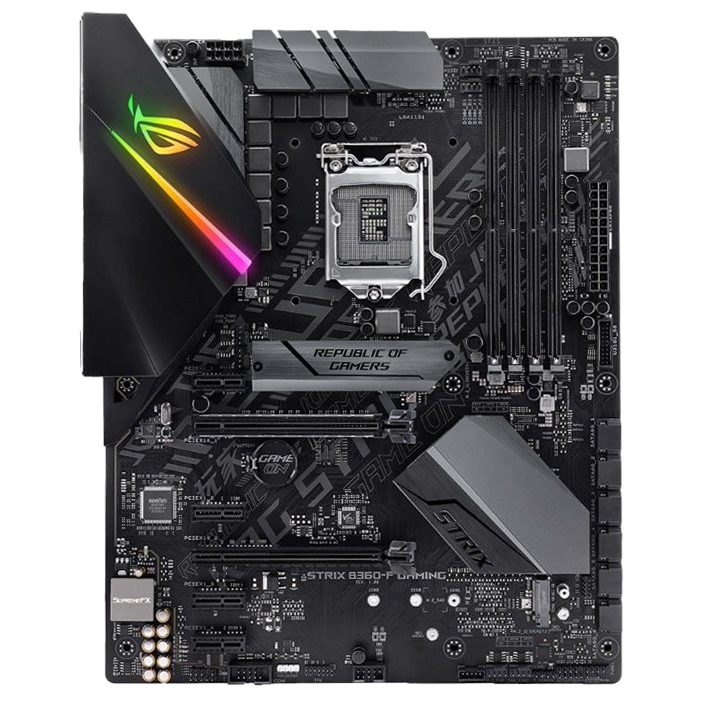
3) Plug the USB 3 cable into the DATA port on the DMA card.
3)将 USB 3 数据线插入 DMA 卡上的 DATA 端口。

4) Plug the other end into a USB 3.0 / 3.1 / 3.2 port on your Second PC.
4)将数据线另一端插入第二台电脑的 USB 3.0 / 3.1 / 3.2 端口。
5) Turn on both the Main PC and the Second PC.
5)打开主电脑和第二台电脑。
6) On the Second PC, open:
6)在第二台电脑上打开:
DMA Cheats\1. DMA Card\100T\1. Driver and run FTD3XXDriver.exe.
进入上述目录并运行 FTD3XXDriver.exe。

7) After installation, you should see the confirmation window.
7)安装完成后,你应该会看到确认窗口。

DMA Speed Test
DMA 速度测试
8) On the Second PC, go to:
8)在第二台电脑上进入:
DMA Cheats\1. DMA Card\100T\3. DMA test and run lone-dma-test.exe.
进入上述目录并运行 lone-dma-test.exe。
Select 1) Full Test.
选择 1)Full Test(完整测试)。

- < 60 MB/s — low speed. Try a better USB cable, a different USB 3 port, or another PCIe slot.
低速。尝试更好的 USB 数据线、不同的 USB 3 端口,或更换 PCIe 插槽。 - ≥ 100 MB/s — good speed
速度良好 - ≥ 150 MB/s — great speed
速度优秀
If your DMA card doesn’t have firmware yet, you can
如果你的 DMA 卡还没有固件,你可以
buy it and install it using our guide.
购买固件,并按照我们的指南安装。
Video Manual
视频教程
Second PC doesn’t detect the DMA card
第二台电脑检测不到 DMA 卡
- Make sure the DMA card is powered ON (if your model has a switch).
确认 DMA 卡已开启(如果你的型号有开关)。 - Try a different PCIe slot (if available).
尝试更换 PCIe 插槽(如果可用)。 - Disconnect other PCIe devices (except the GPU) and test again.
断开其他 PCIe 设备(显卡除外)后再次测试。 - Disable Intel VT-d (or AMD IOMMU) in BIOS.
在 BIOS 中禁用 Intel VT-d(或 AMD IOMMU)。 - Try a different USB 3 cable and a different USB 3 port.
尝试更换 USB 3 数据线和 USB 3 端口。 - In BIOS → Advanced / PCIe settings, switch PCIe to Gen1 or Gen2.
在 BIOS 的 Advanced / PCIe 设置中,将 PCIe 切换为 Gen1 或 Gen2。 - If nothing helps, test with another Second PC (or reinstall Windows on the Second PC).
如果仍然无效,请用另一台第二电脑测试,或在第二台电脑上重装 Windows。
DMA Speed test failed
DMA 速度测试失败
If the device appears in Device Manager but the test won’t run, this video usually fixes it:
如果设备管理器中能看到设备,但测试无法运行,通常可以通过这个视频修复:
Low DMA speed test result
DMA 速度测试结果较低
- Try a different PCIe slot.
尝试更换 PCIe 插槽。 - Use a better USB 3 cable and try another USB 3 port.
使用更好的 USB 3 数据线,并尝试另一个 USB 3 端口。 - Make sure the Second PC is strong enough (CPU not older than ~7 years, and 12GB+ RAM).
确认第二台电脑性能足够,CPU 不建议超过约 7 年,内存至少 12GB。 - If the above doesn’t help, it may be firmware-related — ask the developer to replace it.
如果以上方法无效,可能与固件有关,请联系开发者更换。
After installing firmware
安装固件后
- If speed test stops working after flashing firmware, do a cold boot:
如果刷入固件后速度测试无法工作,请执行冷启动: - Turn off the Main PC and cut power (switch off PSU or unplug the power cable).
关闭主电脑并断电(关闭电源开关或拔掉电源线)。 - Wait 30 seconds.
等待 30 秒。 - Reconnect the USB cable to the DATA port, restore power, and boot Main PC.
重新将 USB 线连接到 DATA 端口,恢复供电并启动主电脑。 - Run the DMA speed test again on the Second PC.
在第二台电脑上重新运行 DMA 速度测试。
Where to download?
在哪里下载?
You can download the DMA Cheats folder here:
你可以在这里下载 DMA Cheats 文件夹:
https://vipercheats.com/download
